
SASSA Identity Verification Fixed
If you see a SASSA Identity Verification request on your status check, it means your personal details do not match the official records held by the Department of Home Affairs, or you have not yet finished the required biometric verification. To fix this and continue receiving your grant payments, you must complete the SASSA biometric identity verification step. This can be done online via the official SASSA portal or in person at a SASSA office.
What is SASSA Identity Verification
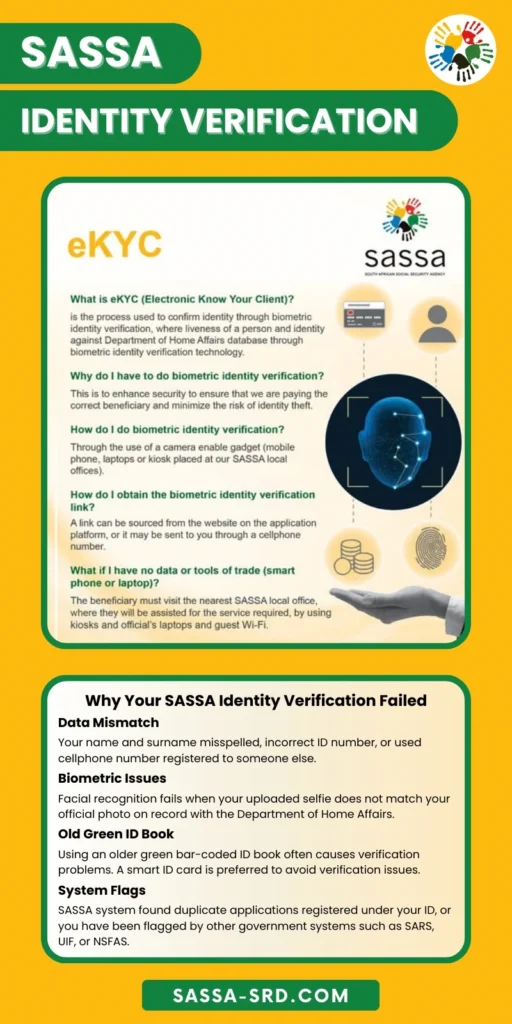
Identity checks are not new. SASSA introduced biometric identity verification on 5 May 2025, initially for applications flagged for identity issues. From 7 June 2025, it became required for all new SRD R370 grant applications, and by 1 September 2025, SASSA expanded the requirement to make biometric enrolment mandatory for all social grant applications.
Now, from 2026 onward, the biometric verification system is part of SASSA’s new eKYC (Electronic Know Your Customer) security protocol. This step prevents fraud, stops incorrect payments, and ensures grants go only to verified, eligible recipients. It is implemented when someone applies for a SASSA SRD grant or social grant and also when a beneficiary changes their phone number, name, banking details, or other personal information.
Why Your SASSA Identity Verification Failed
SASSA requests biometric identity verification when your ID is flagged by the automated system, often showing a Referred Status. Because biometric verification is now mandatory, if you did not finish identity verification during your application or if your first verification attempt fails, your status will change to “SASSA Identity Verification Failed.”
To resolve it, you must resubmit your biometric verification through the SASSA eKYC system. If online verification fails multiple times, SASSA requires you to complete identity verification in person at your closest SASSA office.
These are the following causes for SASSA verification failure.
Data Mismatch: Your name and surname misspelled, incorrect ID number, or used cellphone number registered to someone else.
Biometric Issues: Facial recognition fails when your uploaded selfie does not match your official photo on record with the Department of Home Affairs.
Old Green ID Book: Using an older green bar-coded ID book often causes verification problems. A smart ID card is preferred to avoid verification issues.
System Flags: SASSA system found duplicate applications registered under your ID, or you have been flagged by other government systems such as SARS, UIF, or NSFAS.
Requirements for SASSA SRD Identity Verification
- You will need a valid South African Smart ID card or a Green ID book.
- You must also have access to the cellphone number used for your SASSA online application, as an SMS link will be sent to that number.
- A smartphone with a working camera is required to capture your selfie for facial scanning, and internet data to upload the photo to the SASSA portal.
How to Complete SASSA Identity Verification Online
To complete biometric identity verification, SASSA sends a secure link via SMS to your cellphone number registered for the SRD R370 grant or social grant. This happens during your initial application or during an identity re-verification process.
Once you receive the SMS, the link is valid for 3 days (72 hours). If it expires, you have to request a new link through the SRD portal or by calling the SASSA helpline on 0800 60 10 11.
Here is the step-by-step process for submitting your biometrics for identity verification online.
Step 1 – Open the SASSA Identity Verification Link from the Official SMS
Open the SMS you received from SASSA containing the secure link, then click it. This will take you directly to the eKYC verification page in your phone’s web browser.
Step 2 – Access the SASSA eKYC Verification Portal
If your biometric verification link has expired, you can visit the authorized SASSA SRD portal and open the eKYC page at https://srd.sassa.gov.za/sc19/ekyc/
Step 3 – Capture and Submit Your Facial Biometrics for Identity Verification
You need to follow the on-screen instructions carefully to complete your biometric verification successfully.
- Enter your valid South African ID number and the registered cellphone number.
- SASSA system will send a One-Time PIN (OTP) via SMS.
- Enter the OTP on the portal to access the SASSA eKYC form.
- Confirm your name, surname, and other personal details are correct.
- Take a live selfie of your face using your phone’s camera.
- Make sure your face is clearly visible, and you are not wearing any hats, glasses, or masks.
- Upload and submit your facial photo for biometric verification and wait for confirmation.
You will then receive a confirmation message that your biometric details have been successfully recorded for the SASSA eKYC.
We recommend proper lighting when taking your photo. This improves quality and helps the DHA database accurately recognize your facial image.
In-Person SASSA eKYC Verification at the Office
If you are facing technical difficulties and your biometric identity verification keeps failing for SASSA eKYC, you must visit your local SASSA office for in-person biometric verification. Make sure to bring your original South African ID documents, such as a Smart ID card, green bar-coded ID book, residential ID card, or a valid permit.
- Go to the SASSA office near your location.
- Request the SASSA officer at the front desk to fix your identity verification issue.
- You will be asked to provide your ID documents.
- Reconfirm your personal details for correction, including name, surname, phone number, and banking details.
- Then your fingerprints will be scanned and your facial photo captured for verification.
Once your biometrics are captured, you will receive a receipt confirming your identity verification has been submitted.
Processing Time for SASSA Biometric Identity Verification
SASSA verifies your biometric identity within 3 to 4 working days of online submission. You will be informed via SMS once verification and validation are completed. If successful, your status is updated automatically, and grant payments resume, so you will start receiving your monthly payments on the normal schedule.
If your status hasn’t updated within 5 days, do not wait further. Go to your local SASSA office to resolve the issue. The in-person biometric verification process is almost instant, usually taking 24 to 48 hours, after which your record is updated in the SASSA system.
Check Your SASSA eKYC Status Online
You can check your SASSA status online to confirm that the agency’s eKYC system has verified your identity. This is helpful while you wait after submitting your biometrics.
- To check your SASSA eKYC status, visit the official portal. https://srd.sassa.gov.za/sc19/ekyc/status/
- Enter your ID number and phone number, then click the Status Check button.
- Your SASSA status check result will show your updated identity profile.
Identity Verified
Your identity verification is complete. You are cleared to continue receiving the monthly grant payout on the scheduled SASSA payment dates.
Identity Verification Pending
If your status is “Identity Verification Pending,” it means SASSA requires you to properly resubmit your biometrics online or at the local SASSA branch.
Identity Verification Failed
Your online verification attempt was unsuccessful due to a mismatch or system error. You must visit a SASSA office in person for biometric verification.
SASSA Contact Details for Identity Verification Help
You can contact SASSA at toll-free helpline number 0800 60 10 11 if you need help with identity verification issues, such as the reason for your failed eKYC, or requesting a new biometric verification link.
- SASSA Toll-Free Call Centre: 0800 60 10 11
- Official SASSA Email: grantenquiries@sassa.gov.za
Lost a phone
Please report your lost number to SASSA to prevent misuse of your grant here https://sassa-srd.com/sassa-change-phone-number/ . Also, update your phone number to avoid further delays and issues.